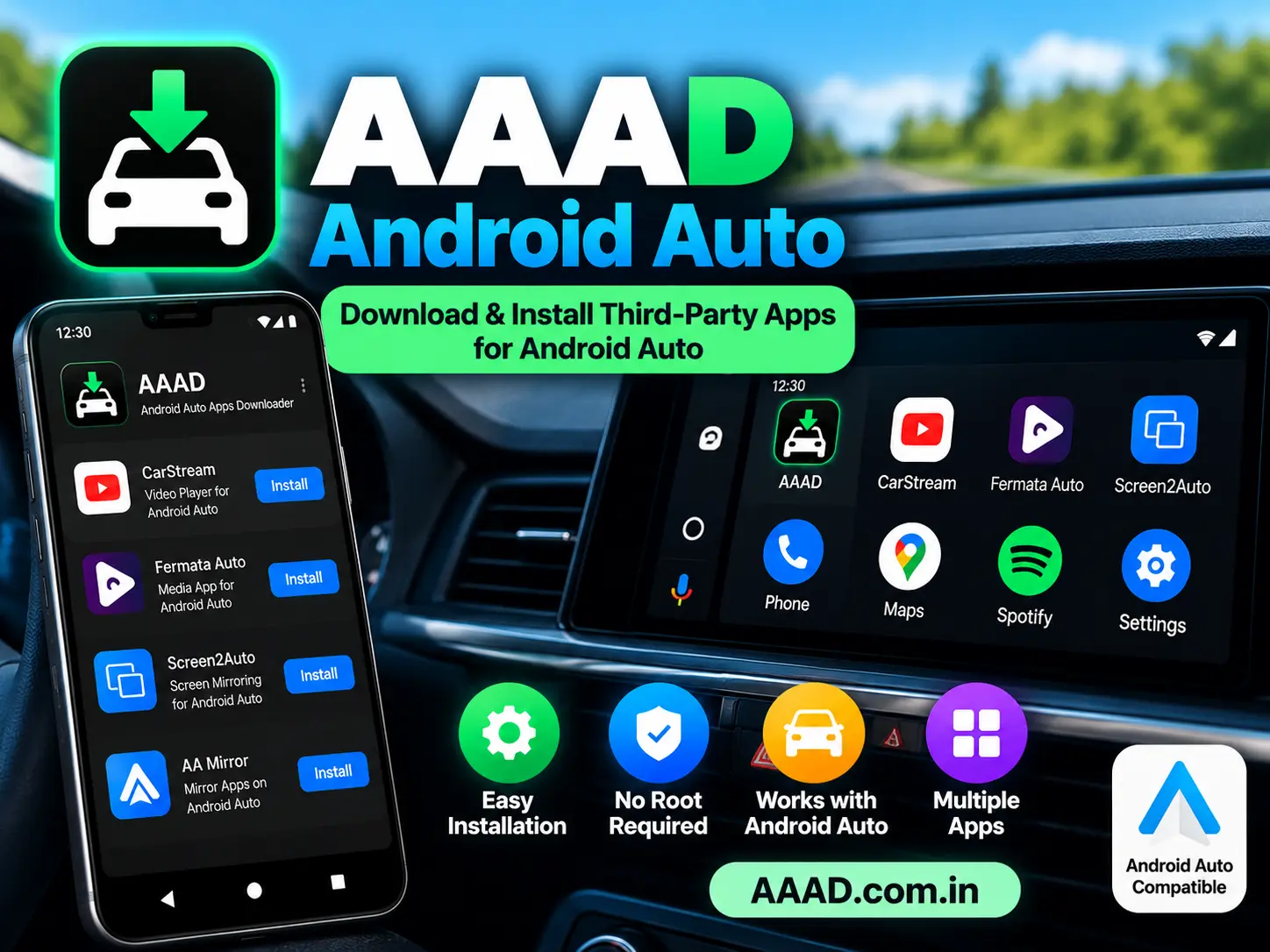
AAAD Android Auto is a popular search term among Android users who want to explore third-party applications designed for their car’s infotainment system. AAAD stands for Android Auto Apps Downloader. It helps users download and install selected third-party applications that may not be available through the standard Google Play Store experience.
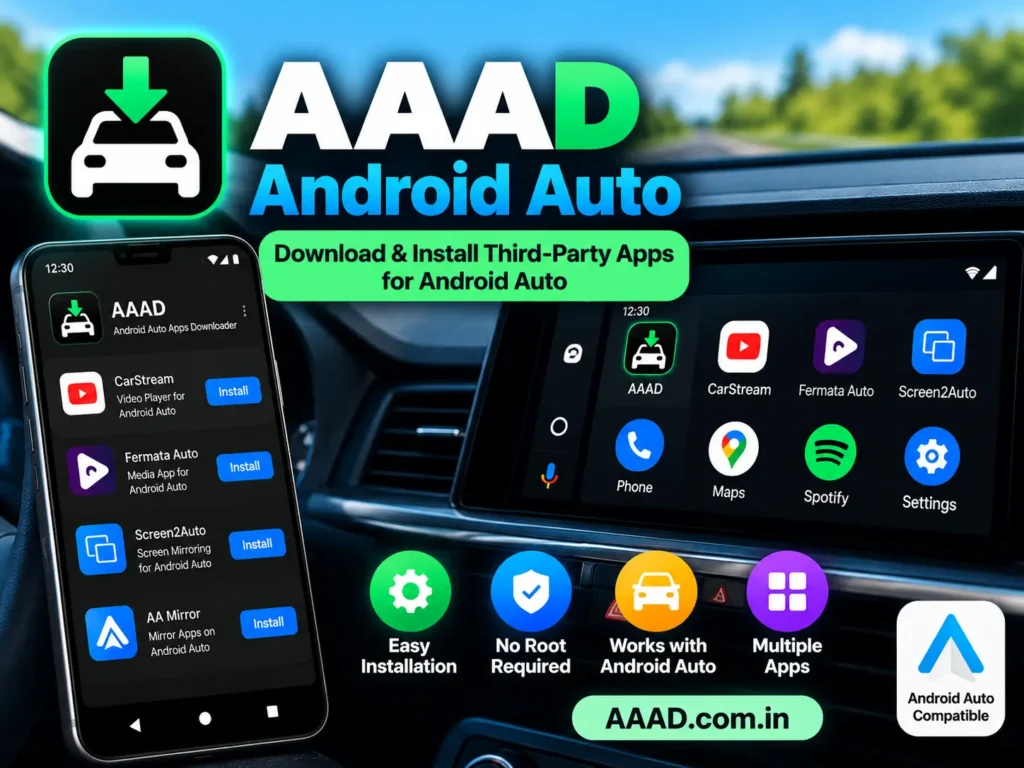
With AAAD, users can explore applications associated with media playback, screen mirroring, and other Android Auto-related features. Examples include CarStream, Fermata Auto, Screen2Auto, and AA Mirror, depending on the version and current availability.
However, installing an application through AAAD does not guarantee that it will appear or work correctly in Android Auto. Compatibility depends on the phone, Android version, Android Auto version, and the individual application.
In this guide, you will learn how AAAD works with Android Auto, which applications it may offer, how to install AAAD, how to troubleshoot common issues, and what you should know about compatibility and safety.
What Is AAAD Android Auto?
AAAD is an Android application that helps users download and install selected third-party applications intended for Android Auto.
Android Auto is Google’s platform for accessing compatible phone applications through a vehicle’s infotainment display. It supports activities such as navigation, communication, and media playback through compatible apps.
AAAD serves a different purpose. It provides access to certain third-party applications that users may want to explore beyond the standard Android Auto app ecosystem.
Here is the difference:
- AAAD: A downloader and installer for selected third-party Android Auto applications.
- Android Auto: Google’s platform for connecting compatible phone apps to a vehicle’s display.
- Third-party apps: Separate applications with their own features, developers, compatibility requirements, and limitations.
AAAD does not replace Android Auto, and it cannot make every Android application compatible with a car’s display.
How Does AAAD Work With Android Auto?
AAAD simplifies the process of downloading selected third-party applications. Instead of searching for each supported APK separately, users can review the available applications through the AAAD interface.
The general process involves downloading AAAD, installing it on an Android phone, selecting an available application, and following Android’s installation prompts.
After installing the selected app, users can connect their phone to a compatible Android Auto system and check whether the app is available.
The process generally follows these steps:
- Download AAAD from the original developer’s repository.
- Install and open AAAD on your Android phone.
- Review the available applications.
- Select a supported application.
- Complete the download and installation process.
- Connect your phone to a compatible Android Auto system.
- Check whether the installed app appears and functions correctly.
The exact experience can vary. Some applications may require additional configuration, while others may not work with your particular Android Auto setup.
The original AAAD documentation states that its normal installation process does not require root access, a computer, or Android Auto developer settings.
Key Features of AAAD for Android Auto
Simple App Selection
AAAD provides an interface for exploring selected third-party applications. Users can review the available options and choose an app that matches their interests.
The application list can change, so check the current version rather than relying on outdated lists found elsewhere.
No Root Access Required
AAAD is designed to work without requiring a rooted Android phone for its normal installation process.
This can make it easier for users who do not want to modify their device’s operating system. However, using a non-rooted phone does not guarantee that every third-party app will work.
No Computer Required
The standard AAAD installation process takes place on the Android phone itself. Users do not normally need a computer to download AAAD or install its supported applications.
A compatible phone and Android Auto setup are still necessary to use relevant features in a vehicle.
Access to Selected Third-Party Apps
Depending on the version, AAAD may offer applications associated with media playback, screen mirroring, and other Android Auto-related functionality.
Each application has its own requirements. Check the developer’s information before installing it.
Free and Pro Options
The original developer’s documentation describes a free version with a limited download allowance and a Pro option that permits unlimited downloads under its stated terms.
The free version has historically allowed one download every 30 days. Check the current in-app information before purchasing Pro, as the available terms should always be verified.
Installation Through Android’s Package Installer
After downloading an application, Android generally handles the installation through its standard package installer.
You should review the application name, source, permissions, and any security warnings before proceeding.
Compatibility Information
AAAD provides documentation about known issues and limitations. Reviewing this information before installation can help you avoid unnecessary troubleshooting.
Remember that compatibility depends on more than AAAD alone. Android, Android Auto, the selected application, and your phone can all affect the result.
Which Apps Can You Use With AAAD Android Auto?
AAAD has been associated with several third-party applications. Their availability and compatibility may change, so verify the current list before installing anything.
CarStream
CarStream is associated with video playback functionality for Android Auto.
Users researching AAAD CarStream often want to learn about its availability, installation process, and compatibility. However, its features may vary by version, and successful installation does not guarantee that it will appear on every vehicle display.
Video playback should only be used when the vehicle is safely parked and local laws permit it.
Related guide: AAAD CarStream.
Fermata Auto
Fermata Auto is associated with media-related functionality.
Its features and installation requirements may differ across versions. Check the current application documentation and compatibility information before installing it through AAAD.
Screen2Auto
Screen2Auto is a third-party tool associated with screen-related functionality for Android Auto.
Its operation can be affected by Android versions, device-specific restrictions, and Android Auto updates. Verify its current requirements before attempting installation.
AA Mirror
AA Mirror is associated with screen mirroring. Its functionality can vary depending on the app version and device configuration.
Screen mirroring can introduce distractions, so do not interact with it while driving.
Other Applications
AAAD has also been associated with tools such as AAStream, AA Mirror Plus, Widgets for Android Auto, and other third-party projects.
Not every application will necessarily be available in the current release. Review the original documentation for the most accurate information.
How to Download AAAD for Android Auto
If you want to use AAAD with Android Auto, start by obtaining the application from the original developer.
The developer identifies the original GitHub repository as the official download source and warns that several third-party download websites are not affiliated with the project.
Follow these steps:
- Open the original AAAD GitHub repository.
- Read the README and review the current release information.
- Open the repository’s Releases section.
- Check the available versions and release notes.
- Download the APK from the developer’s release page.
- Verify the file source before installing it.
Avoid modified APKs, cracked Pro versions, and downloads from unfamiliar websites.
If you cannot verify a file’s authenticity, do not install it.
How to Install AAAD on Android
After downloading the APK from the original developer’s repository, follow these general steps.
Locate the Downloaded APK
Open your phone’s Downloads folder or file manager and locate the downloaded AAAD APK.
Check that the file came from the expected source before opening it.
Open the APK
Tap the file to open Android’s package installer.
Depending on your device settings, Android may ask you to allow your browser or file manager to install applications from that source.
Review Security Prompts
Read any warnings carefully. Verify the file and investigate the warning rather than automatically bypassing security protections.
Only change installation permissions if you understand why the setting is required. Restrict the permission again afterward if you no longer need it.
Complete Installation
Follow Android’s installation prompts.
If installation fails, check the Android version, APK source, and release notes before trying another file.
Open AAAD
Once installed, open AAAD and review the applications available in your version.
You can then decide whether to install a supported application.
How to Use AAAD With Android Auto
Installing AAAD is only the first step. You must also consider whether the application you choose is compatible with your phone and Android Auto setup.
Open AAAD
Launch AAAD on your Android phone and review the available applications.
Select an Available App
Choose an application that matches your requirements. Read its description and check its compatibility information before proceeding.
Install the Application
Follow AAAD’s instructions and Android’s package installation prompts.
If a security warning appears, investigate it before proceeding. Do not disable security features simply to force an installation.
Connect Your Phone
Connect your Android phone to a compatible vehicle using a supported USB connection or wireless Android Auto, depending on your vehicle and phone.
Follow the instructions provided by your vehicle manufacturer.
Check the Available Apps
While the vehicle is safely parked, check the Android Auto interface to see whether the installed application appears.
An app may install successfully on the phone without becoming available on the vehicle display.
Test Basic Functionality
If the app appears, check whether its basic features work correctly.
If it crashes, remains unavailable, or behaves unexpectedly, review the application’s documentation and the current AAAD known issues.
Safety reminder: Never watch videos or interact with distracting features while driving. Use such features only when the vehicle is safely parked and local laws permit them.
Is AAAD Compatible With Android 14, 15, and Newer Versions?
Compatibility with newer Android versions requires particular attention.
The original AAAD documentation warns that versions below 2.0 are incompatible with Android 14 and newer. It also notes uncertainty about compatibility with AAAD 2.x releases.
This warning means you should not assume that every AAAD release works on Android 14, Android 15, or newer versions.
Before installing AAAD, consider the following:
- Check the latest release notes.
- Confirm that the version is appropriate for your Android device.
- Review known issues affecting your phone manufacturer.
- Check whether the selected application supports your setup.
- Avoid assuming that an older guide reflects current compatibility.
Compatibility can change as AAAD, Android, Android Auto, and third-party applications are updated.
Is AAAD Android Auto Safe?
AAAD installs third-party applications, so it is important to understand the risks associated with software obtained outside the Google Play Store.
Use these precautions to reduce risk:
- Download AAAD from the original developer’s repository.
- Avoid modified and cracked APK files.
- Check the source of each application.
- Review requested permissions before installing.
- Investigate Google Play Protect and Android security warnings.
- Keep your phone and software updated.
- Remove applications you no longer trust or need.
Do not automatically disable Google Play Protect because an installation guide tells you to do so. Security warnings should be investigated, and you should proceed only when you understand the source and risks of the file.
AAAD also cannot guarantee that every application it provides will function correctly in Android Auto.
Common AAAD Android Auto Problems and Solutions
AAAD Apps Do Not Appear in Android Auto
An application can install on your phone without appearing on the vehicle display.
Possible reasons include compatibility restrictions, device-specific problems, or changes introduced by Android Auto updates.
Check the current AAAD documentation and the selected app’s requirements before attempting a workaround.
AAAD Is Not Installing
First, verify the APK’s source and confirm that the download completed correctly.
Check whether the selected release is compatible with your Android version. If Android displays a security warning, investigate it rather than automatically bypassing it.
An App Stops Working After an Update
An Android, Android Auto, or third-party app update can affect compatibility.
Check the relevant release notes and known issues. Avoid installing older versions unless you have verified that the version is suitable for your device.
AAAD Download Is Failing
Check your internet connection and confirm that the original release is available.
If the download continues to fail, review the developer’s documentation for current guidance. Avoid downloading a replacement APK from an unfamiliar website simply because the original download is unsuccessful.
AAAD Apps Disappear on Certain Phones
The original documentation lists known issues affecting some Google Pixel, Oppo, Realme, and OnePlus configurations.
These issues can depend on the Android version and device setup. Consult the relevant documentation before applying a fix, and avoid following instructions intended for a different device or Android version.
AAAD Android Auto vs. Standard Android Auto Apps
AAAD and standard Android Auto applications serve different purposes.
| Feature | AAAD | Standard Android Auto Apps |
|---|---|---|
| Main purpose | Downloads selected third-party apps | Provides compatible features through Android Auto |
| Installation | AAAD APK and selected app installation | Usually installed through Google Play or another supported distribution method |
| Root access | Not required for AAAD’s normal process | Not normally required |
| Compatibility | Depends on AAAD and the selected app | Depends on official app support and device compatibility |
| Availability | Depends on AAAD’s current list | Depends on supported Android Auto applications |
| Reliability | Third-party apps may stop working | Depends on each app and its support |
If you only need standard navigation, calls, messaging, and supported media applications, you may not need AAAD.
Advantages and Limitations of AAAD Android Auto
Advantages
- Provides access to selected third-party applications.
- Offers an installation process that does not normally require root access.
- Does not normally require a computer.
- Provides a central interface for supported applications.
- Offers free and Pro usage options.
Limitations
- Does not guarantee that every app will work.
- Compatibility can change after software updates.
- Some Android versions and devices may have known issues.
- Third-party APKs require careful source and permission checks.
- Video and screen-related features may introduce safety concerns.
Understanding these limitations can help you decide whether AAAD is appropriate for your needs.
Frequently Asked Questions
What Does AAAD Stand For?
AAAD stands for Android Auto Apps Downloader. It is an Android application designed to download and install selected third-party applications associated with Android Auto.
Is AAAD Required for Android Auto?
No. AAAD is not required for ordinary Android Auto functions. It is intended for users who want to explore selected third-party applications.
Does AAAD Require Root Access?
No. The original developer describes the normal AAAD installation process as working without root access.
Can I Install AAAD on an iPhone?
AAAD is an Android application, not a native iOS app. You cannot install an Android APK directly on an iPhone.
Does AAAD Work on Android 14 and Newer?
Compatibility is not guaranteed. The original documentation warns that versions below 2.0 are incompatible with Android 14 and newer and notes uncertainty with 2.x releases. Check the latest release notes for current guidance.
Is AAAD Free?
AAAD offers a free option and a Pro license. The developer’s documentation describes a download limit for the free version and unlimited downloads for Pro. Confirm the current terms within the app before purchasing.
Why Are Some Apps Missing From AAAD?
The application list can change, and not every Android app is suitable for Android Auto. Check the current AAAD release and the relevant application’s documentation.
Can AAAD Apps Stop Working?
Yes. Changes to Android, Android Auto, or the third-party application can affect functionality. The developer does not guarantee that every app will work indefinitely.
Can I Use AAAD Apps While Driving?
Always follow local law and vehicle safety guidance. Never watch videos or interact with distracting features while driving. Use video-related functionality only when the vehicle is safely parked and the activity is permitted.
Final Verdict: Is AAAD Android Auto Worth Exploring?
AAAD can be useful for Android users who want to explore selected third-party applications associated with Android Auto. It provides a central interface for supported apps and does not normally require root access or a computer.
However, AAAD is not a universal solution for installing every Android application on a vehicle display. Compatibility varies, third-party applications carry their own risks, and updates can change how they work.
For a safer and more informed experience, download AAAD from the original developer’s repository, read the current release notes, and verify compatibility before installing additional applications.