AAAD APK
AAAD APK: Explore features, supported apps, download and installation guides, compatibility, safety tips, and Android Auto troubleshooting advice.
AAAD APK
An APK, also known as Android Auto Apps Downloader, is an Android application designed to help users install supported third-party apps for Android Auto. It offers a convenient way to explore compatible applications that may not be available through the usual Android Auto app-discovery process. However, availability and functionality depend on the app, Android version, and Android Auto restrictions.
If you want to learn more about the AAAD app, this guide covers its main features, supported applications, installation process, compatibility, and safety considerations. You will also find information about the free and Pro versions, common installation errors, and ways to troubleshoot problems.
Before downloading AAAD APK, check the available version and its requirements. Always review the source of an APK file and avoid modified downloads from unfamiliar websites. These precautions can help you make a more informed decision before installing third-party software on your Android device.
What Is AAAD APK?
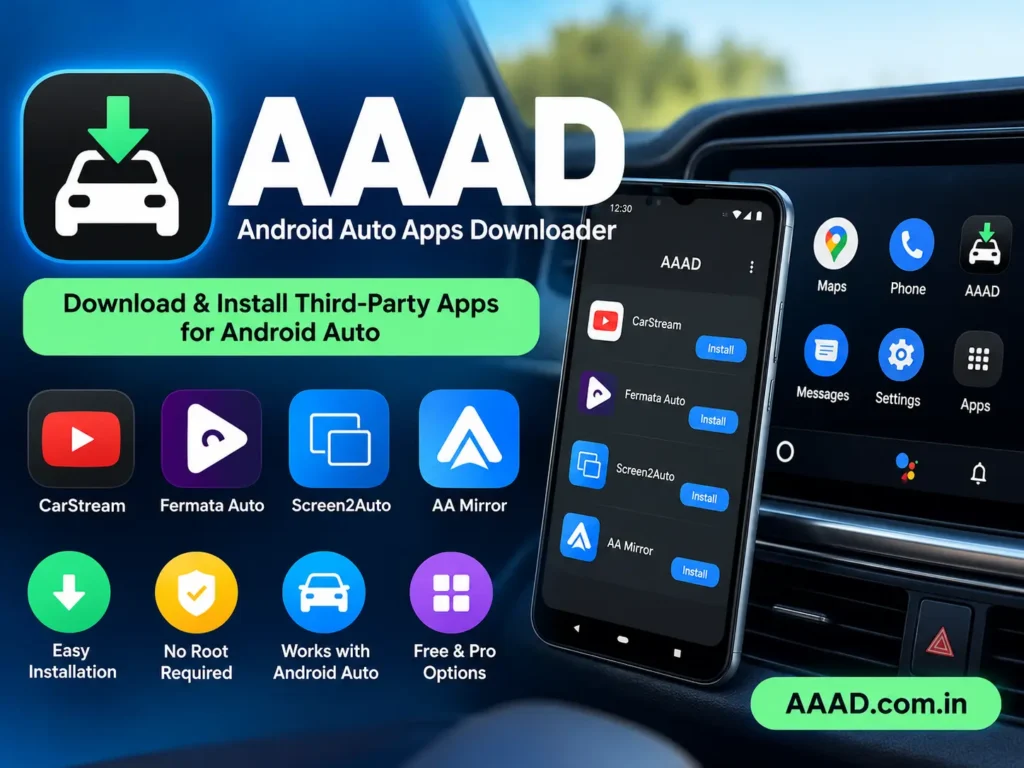
AAAD APK stands for Android Auto Apps Downloader. It is an Android application designed to help users install supported third-party applications intended for use with Android Auto. The app provides a way to discover and install compatible apps that may not be available through the standard Android Auto app-discovery process.
Android Auto connects a compatible Android phone to a vehicle’s infotainment system, allowing drivers to access supported navigation, communication, and audio applications. However, Android Auto does not support every Android application. AAAD provides an alternative installation method for certain supported apps, although installing an app does not guarantee that it will work correctly with every phone, Android version, or vehicle.
What Does AAAD Stand For?
AAAD stands for Android Auto Apps Downloader. Its primary purpose is to help users download and install supported applications associated with Android Auto.
People searching for AAAD APK usually want to learn about its features, check the latest available version, or find instructions for installing compatible applications. Before choosing a download, users should verify the file’s source, version information, and compatibility requirements.
How Does AAAD Work?
AAAD provides an interface through which users can access supported third-party applications and initiate their installation. The general process involves obtaining the AAAD APK, installing it on a compatible Android device, opening the application, and selecting an available app.
The exact process may vary depending on the AAAD version, Android settings, and the application being installed. Some apps may also require additional configuration. Furthermore, Android Auto applies its own compatibility and safety restrictions, so an application installed through AAAD might not appear or function as expected.
For the best results, review the requirements of both AAAD and the individual app before proceeding.
Who Should Use AAAD APK?
The AAAD app may interest Android users who want to explore supported third-party applications for their Android Auto setup. It can be particularly relevant to users researching apps such as CarStream, Fermata Auto, or other applications that may be available through compatible versions of AAAD.
However, users should consider their device’s software version, their vehicle’s Android Auto support, and the requirements of each application. If a desired app is already available through a trusted, standard distribution channel, that option may be simpler to maintain.
What AAAD APK Does Not Do
Understanding the limitations of AAAD is just as important as knowing its purpose.
- It does not replace Android Auto: AAAD is a separate Android application used to install supported apps.
- It does not guarantee universal compatibility: An app may work on one device but fail on another.
- It does not make every Android app compatible with cars: Android Auto has its own application and functionality restrictions.
- It is not a native iPhone application: AAAD is designed for Android, not iOS.
- It does not eliminate security risks: Installing APK files requires careful attention to the download source, file integrity, and requested permissions.
In summary, AAAD APK offers an alternative way to install certain supported third-party Android Auto applications. Checking compatibility, understanding the installation process, and using trustworthy sources can help you decide whether it suits your needs.
AAAD APK Information and Version Details
Before downloading AAAD APK, it is important to understand its basic information, version history, and compatibility requirements. Checking these details helps you identify the appropriate release for your Android device and avoid confusion caused by outdated information on third-party websites.
AAAD, or Android Auto Apps Downloader, is designed to help users download and install supported third-party applications intended for Android Auto. The original developer publishes the project on GitHub, where users can review release information and changes.
AAAD APK Information Table
| App Information | Details |
|---|---|
| Application Name | AAAD (Android Auto Apps Downloader) |
| App Type | Android application |
| Main Purpose | Downloading and installing supported third-party Android Auto apps |
| Developer | Gabriele Rizzo (shmykelsa), according to the developer’s repository |
| Latest Version | Check the latest release on the developer’s GitHub page |
| APK File Size | Check the actual release file before downloading |
| Android Requirements | Verify the requirements for the specific release |
| Pricing | Free version with limited downloads and an optional Pro version, according to the developer |
| Official Download Source | Original developer’s GitHub repository |
| Root Requirement | The documented installation process is designed to work without root access |
What Is the Latest AAAD APK Version?
The latest AAAD APK version may change as the developer releases updates, fixes bugs, and improves compatibility. For this reason, users should check the original repository rather than relying entirely on version numbers displayed on third-party download websites.
The release page provides version information and notes about changes made to the application. Reviewing these notes can help you understand whether an update addresses a problem you have experienced or introduces changes relevant to your device.
Before installing an update, confirm that the release is compatible with your Android device. If you already use AAAD Pro, review the developer’s upgrade guidance before uninstalling or replacing an existing installation.
How Large Is the AAAD APK File?
The AAAD APK file size depends on the specific release and package you download. Avoid relying on an old file-size figure because it may refer to a previous version or a different package.
Before downloading, compare the displayed file size with the information available from the original release. A significant discrepancy is a reason to investigate the file’s source rather than immediately installing it.
Also, make sure your phone has enough available storage for the APK and the applications you intend to install. The additional storage required will depend on the apps you select.
Which Android Versions Does AAAD APK Support?
Compatibility depends on the AAAD version, Android operating system, and installation method. A version that works on one device may encounter restrictions on another.
The developer’s documentation identifies compatibility issues affecting older AAAD releases on Android 14 and later. It also notes that compatibility with newer Android versions may depend on the specific release and configuration. Therefore, users should check the latest documentation rather than assuming that every AAAD version supports every Android device.
Before installing AAAD, consider these points:
- Check the Android version running on your phone.
- Review the requirements for the AAAD release you plan to install.
- Confirm that Android Auto is available and compatible with your setup.
- Check the requirements of each third-party app you want to use.
- Look for known device-specific issues in the developer’s documentation.
Remember that installing AAAD successfully does not guarantee that every application it offers will work with your phone or vehicle.
Where Can You Verify AAAD APK Release Information?
The original developer’s GitHub repository is the best starting point for checking AAAD’s published release information. It provides access to project documentation, release notes, and available downloads.
When reviewing a release, check the version number, release notes, package details, and any installation warnings. Avoid modified APKs from unfamiliar sources, especially when the publisher does not explain what has been changed.
If you encounter an installation error, consult the documentation for your specific version before trying workarounds. This approach can help you distinguish an outdated APK from a device-specific compatibility problem.
In short, checking AAAD APK information before downloading can save time and reduce avoidable installation problems. Always prioritize current release details and compatibility guidance over specifications copied from older pages.
Key Features of AAAD APK
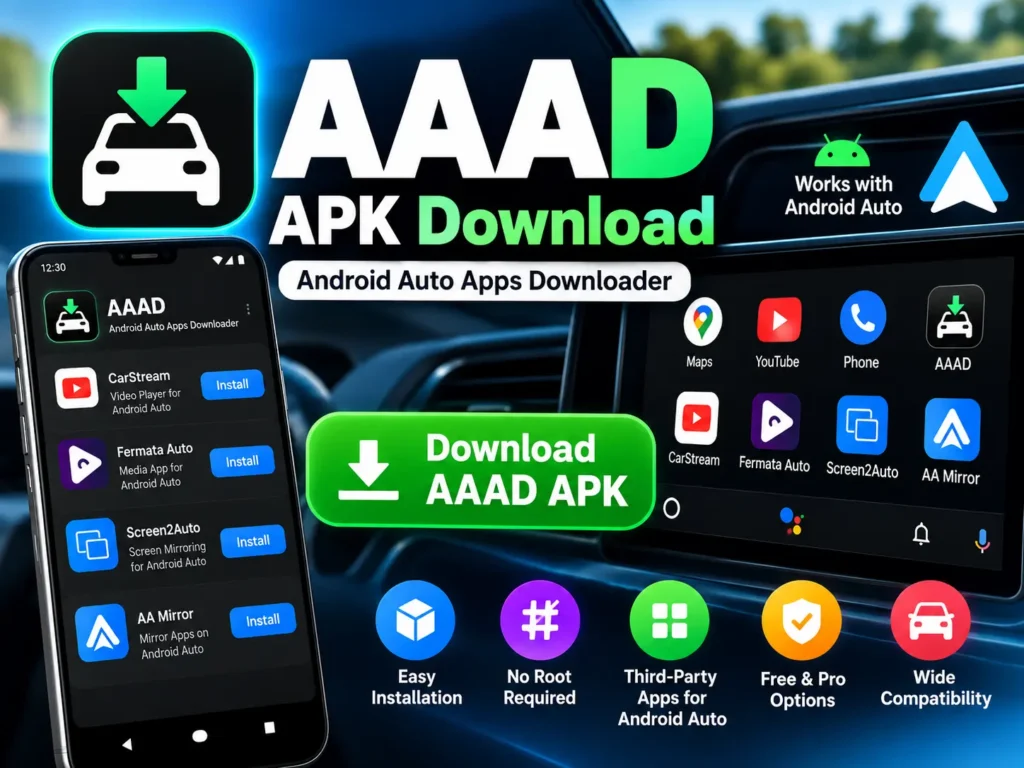
AAAD APK, also known as Android Auto Apps Downloader, offers a convenient way to download and install supported third-party applications designed for Android Auto. Instead of manually searching for individual APK files, users can select available applications through the AAAD interface and follow the Android installation process.
The app is designed to simplify installation on compatible Android phones without requiring root access. However, its features and compatibility depend on the installed version, the selected application, and changes to Android Auto.
Simple and Easy-to-Use Interface
AAAD provides a straightforward interface that helps users browse the applications available through the downloader. Users can select an application and follow the prompts to download and install it.
This approach can be easier than manually locating individual APK files. However, users should still review the application details and compatibility requirements before installation.
No Root Access Required
One of the main advantages of AAAD is that its intended installation process does not require a rooted Android phone. Rooting can involve additional technical steps and security considerations, so users who prefer to keep their devices unrooted may find this approach more convenient.
AAAD also aims to simplify installation without requiring a computer or manually patching APK files. Nevertheless, device-specific restrictions may still affect whether an installed application works correctly with Android Auto.
Download Supported Third-Party Applications
AAAD provides access to selected third-party applications developed for Android Auto. Depending on the available release and app compatibility, the selection may include applications such as CarStream, Fermata Auto, AA Mirror, and other tools.
Each application serves a different purpose. Before installing one, check its current availability, requirements, and limitations. An application listed in AAAD may not work on every Android phone or vehicle.
Convenient Installation Process
AAAD brings the download and installation process together in one place. After choosing an available application, users can follow the download prompt and complete installation through Android’s package installer.
This can reduce the need to search for APK files across multiple websites. However, the process is not guaranteed to succeed in every situation. Network problems, Android restrictions, incompatible versions, or changes to Android Auto may cause errors.
Free and Pro Usage Options
AAAD offers a free version with limited downloads and an optional Pro version. According to the developer’s published documentation, the free version allows one download every 30 days, while Pro removes that download limit.
Users should check the current terms in the application and the developer’s documentation before making a purchase. The Pro version changes the available download allowance; it does not guarantee that every supported application will function on every device.
Works Without a Computer
The AAAD installation workflow is designed to run directly on a compatible Android phone. Users generally do not need a computer to download AAAD, choose an available application, and complete the installation process.
This makes the process more convenient for users who prefer to manage their Android Auto applications from their phones. A compatible Android device and the necessary storage and permissions are still required.
Application Updates and Maintenance
Keeping AAAD and its installed applications updated can help users address certain bugs and compatibility issues. The developer’s documentation explains that users can use AAAD to download newer versions of supported applications when available.
However, AAAD should not be assumed to have an automatic update checker for every installed application. Users may need to check for updates manually and review release information before installing a new version.
Access to Application Information
Before installing an application, users should check its purpose, requirements, and compatibility information. Understanding these details can help them decide whether an app is suitable for their device and Android Auto setup.
It is also important to distinguish between an application’s availability for download and its ability to appear or work in Android Auto. The developer does not guarantee that every application offered through AAAD will function correctly in every environment.
A Convenient Alternative to Manual APK Searching
Finding third-party applications across different websites can make it difficult to determine which files are current and trustworthy. AAAD offers a more centralized way to access the applications included in its catalogue.
Even so, users should verify the source of AAAD itself and review security warnings before installing any downloaded application. A centralized download process does not remove all risks associated with third-party software.
Why Choose AAAD APK?
AAAD may be useful for Android Auto users who want a simpler way to access supported third-party applications without rooting their phones. Its main benefits include a straightforward interface, a phone-based installation process, and free and Pro usage options.
However, compatibility remains an important consideration. Android updates and Android Auto restrictions can affect whether an application installs successfully or appears on a vehicle’s display. For the best experience, review the requirements for each app and consult the developer’s documentation before making changes to your device.
Apps You Can Install Using AAAD APK
One of the main reasons people search for AAAD APK is to discover third-party applications designed for Android Auto. Android Auto supports selected applications, but not every Android app is available through its standard app-discovery process. AAAD provides a way to download and install certain supported third-party apps on compatible Android devices.
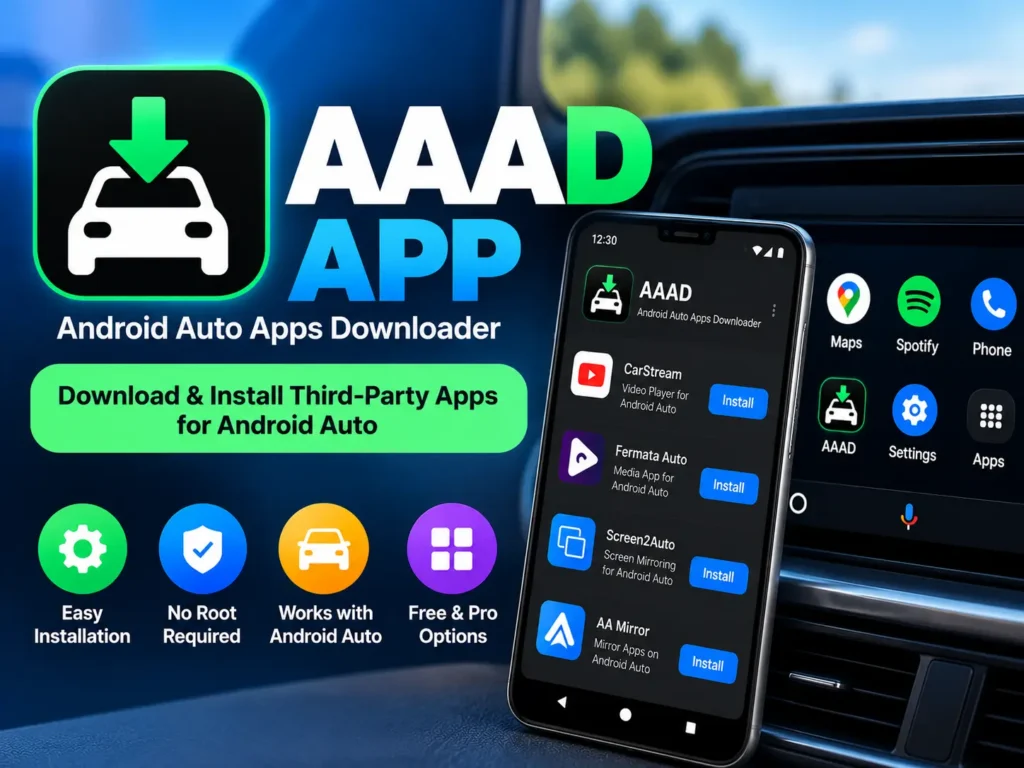
The available selection may include CarStream, Fermata Auto, Screen2Auto, and AA Mirror. However, availability can change, and installing an application does not guarantee that it will work with every phone, Android version, or vehicle. Check the current AAAD documentation and the requirements of each app before installing it.
CarStream
CarStream is a third-party application associated with playing online video content through Android Auto-compatible setups. It is one of the applications commonly associated with AAAD, making it relevant to users searching for AAAD CarStream or ways to access video-related features in their car infotainment systems.
Before installing CarStream, check whether it is available in your AAAD version and whether it supports your Android configuration. Android Auto updates and device restrictions may affect its installation or functionality.
Users should also understand the safety implications of video playback in a vehicle. Do not watch or interact with video content while driving. Use video-related features only when safely parked or where legally permitted for passengers.
Fermata Auto
Fermata Auto is another application associated with AAAD. It is known for media-related functionality, although the features available to a particular user depend on the app version and device configuration.
Before installing Fermata Auto, review its current documentation and requirements. Check which features are supported, whether additional configuration is necessary, and whether the app works with your Android Auto version.
Fermata Auto may be worth investigating if you want to explore third-party media options for your Android Auto setup. However, do not assume every feature will work on every device.
Screen2Auto
Screen2Auto is associated with screen-related functionality for Android Auto. Depending on the version and configuration, it may offer ways to display supported phone content through a compatible car infotainment system.
Its availability and functionality can depend on Android restrictions, permissions, and changes to Android Auto. Some features may require additional setup, so review the application’s current instructions before proceeding.
Screen mirroring can expose content that is not designed for use while driving. Configure and test these features only when the vehicle is safely parked, and never interact with mirrored video or other distracting content while driving.
AA Mirror
AA Mirror is associated with screen mirroring on Android Auto-compatible setups. Users interested in displaying supported phone content on a vehicle’s infotainment screen may want to investigate this application.
Compatibility can vary according to the app version, Android operating system, phone manufacturer, and Android Auto configuration. The presence of AA Mirror in an older app list does not guarantee that it remains available or works on a current device.
Before installation, check the current listing and documentation. Also, distinguish between AA Mirror and similarly named projects, such as AA Mirror Plus, because their features and requirements may differ.
Other Applications Available Through AAAD APK
The original AAAD project also acknowledges applications such as AA Mirror Plus, AA Browser, AA Passenger, Performance Monitor, and AATorque. Their availability and compatibility should be checked against the current project documentation and the particular AAAD release.
These applications have different purposes. For example, some focus on browsing, passenger-related functions, vehicle information, or additional Android Auto features. Not every application will suit every user or vehicle.
When evaluating an additional app, check the following:
- Purpose: Understand what the application is designed to do.
- Availability: Confirm that the app is listed in your version of AAAD.
- Requirements: Review its Android and Android Auto requirements.
- Permissions: Check whether its requested permissions make sense for its function.
- Compatibility: Look for known issues affecting your phone or software version.
- Source: Use trustworthy sources and avoid modified packages from unfamiliar websites.
The original developer explains that AAAD provides access to selected third-party applications but does not guarantee that every listed app will work with Android Auto. Software changes can affect installation methods and compatibility.
Why Is an App Missing From AAAD?
Sometimes, an application you expected to find may not appear in the AAAD interface. This does not necessarily mean that something is wrong with your phone.
Possible reasons include:
- The app is not included in your installed AAAD version.
- The app’s availability has changed.
- The application is incompatible with your current configuration.
- The information on a third-party website is outdated.
- The application has been discontinued or its installation method no longer works.
Start by checking the original AAAD documentation and the app’s own release information. Avoid downloading a similarly named APK from an unfamiliar source simply because the expected app is missing.
Which AAAD App Should You Choose?
The best choice depends on what you want to accomplish. Users interested in media applications may investigate Fermata Auto, while those researching screen-related functionality may look into Screen2Auto or AA Mirror. CarStream may interest users researching video-related features, subject to compatibility and safety limitations.
Before installing any third-party application, verify its current availability, review its requirements, and understand its limitations. AAAD can simplify access to supported apps, but it cannot guarantee compatibility with every Android device or vehicle.
AAAD APK Download for Android
If you want to install Android Auto Apps Downloader on your phone, start by checking the available AAAD APK release and its compatibility requirements. AAAD helps users download and install selected third-party applications designed for Android Auto. Since the application is distributed outside the Google Play Store, choosing a trustworthy download source is particularly important.
The original developer identifies the AAAD GitHub repository as the official download source and warns that several third-party download websites are not affiliated with the project. You can review the available releases through the official AAAD GitHub repository.
Where to Find the AAAD APK
The recommended starting point is the original developer’s GitHub repository. It provides project information, release details, and links to available downloads.
Follow these steps to locate the APK:
- Open the original developer’s AAAD repository.
- Navigate to the Releases section.
- Review the available release versions and accompanying notes.
- Check the requirements and known compatibility issues.
- Select the appropriate APK asset provided with the release, if available.
- Save the file to your Android device.
Avoid choosing a download simply because a website advertises it as the newest or safest version. Verify the source and release information before proceeding.
How to Check the Downloaded APK
Before installing AAAD APK, take a moment to check the downloaded file. These precautions can help you avoid outdated, modified, or misleading packages.
- Verify the source: Make sure the file came from the developer’s repository or a source you can independently verify.
- Check the version: Compare the version information with the relevant release notes.
- Review the file details: Confirm that the filename and available package information match the expected release.
- Watch for unexpected changes: Be cautious if a download page advertises extra features, a modified Pro version, or an unexplained installer.
- Review security warnings: Investigate any warning instead of automatically dismissing it.
A file’s name alone does not prove that it is genuine. If you cannot verify its source, avoid installing it.
AAAD APK Download Latest Version
Downloading the latest AAAD APK can help you access recent fixes and changes, but the newest release is not automatically compatible with every phone or Android Auto configuration.
Before updating, check the release notes for information about compatibility, installation changes, and known issues. This is especially important if you use an older Android device or have an existing AAAD installation with a Pro license.
The developer’s repository also explains that compatibility can vary between AAAD versions and Android releases. For example, its documentation identifies issues affecting older versions on Android 14 and later. Check the current notes rather than relying on an outdated compatibility claim.
What to Do If the Download Fails
Sometimes, an AAAD APK download may stop unexpectedly or fail to complete. The problem may be related to your internet connection, browser, available storage, or the source hosting the file.
Try these steps:
- Check your internet connection. Switch to a stable network and try again.
- Review available storage. Make sure your phone has enough space to save the APK.
- Retry the download. If the connection was interrupted, start a fresh download from the verified source.
- Check the saved file. If the download appears incomplete, remove the incomplete file and download it again.
- Review browser restrictions. Check whether your browser blocked the download or displayed a security warning.
- Verify the release source. If the file remains unavailable, check the developer’s repository for another documented release or download option.
Do not install an incomplete file or use an unfamiliar mirror simply because the original download failed.
Should You Download an Older AAAD Version?
An older AAAD release may be relevant when investigating a device-specific problem or checking whether a particular feature changed between versions. However, older software may lack fixes or may not work with newer Android releases.
Before considering an older version, review its release notes and compatibility information. Avoid downgrading without understanding the possible consequences, particularly if you have an active Pro license or use a newer Android device.
If you are troubleshooting an existing installation, identify the exact error and check the developer’s documentation first. Updating to a compatible release may be more appropriate than installing an arbitrary older APK.
Important Things to Know Before Downloading AAAD
Keep these points in mind before installing the application:
- AAAD is an Android application, not a native iPhone app.
- Installing AAAD does not guarantee that every available third-party app will work with your phone or vehicle.
- Android and Android Auto updates may affect compatibility.
- The free version has a limited download allowance, while the Pro version offers additional downloads according to the developer’s published terms.
- Security warnings should be investigated rather than ignored automatically.
How to Install AAAD APK on Android
Installing AAAD APK on an Android phone is a straightforward process when you use a compatible version and follow the correct steps. AAAD, or Android Auto Apps Downloader, is designed to help users download and install supported third-party applications for Android Auto without requiring root access or a computer.
Unlike applications distributed through the Google Play Store, AAAD is distributed through the developer’s GitHub repository. Before installing it, check the source, review the available release information, and confirm that your device meets the requirements.
Download the AAAD APK
First, visit the original developer’s repository and open the Releases section.
Review the available versions and release notes. Select the appropriate APK file if it is provided as a release asset, then download it to your Android phone.
Avoid modified APK files from unfamiliar websites. The original developer specifically warns that several third-party download sites are not affiliated with the project.
Open the Downloaded APK
Once the download finishes, open your phone’s Downloads folder or tap the completed download notification in your browser.
Select the AAAD APK file to begin installation. Android may display a security prompt because the application was downloaded outside the Google Play Store.
If the file does not open, check that the download completed successfully and that you selected the correct file.
Allow Installation From Your Browser, If Required
Depending on your Android version and device settings, your phone may ask you to authorize the browser or file manager to install applications.
If prompted:
- Open the relevant Android settings screen from the warning.
- Find the option that allows installation from that specific source.
- Review the permission and enable it only if you trust the APK’s source.
- Return to the installation screen.
The exact menu names vary between Android versions and phone manufacturers. This permission applies to the selected source, not necessarily to every application on your phone.
Security tip: Do not enable installation permissions for an unfamiliar source just to bypass a warning. Verify the file before proceeding.
Install AAAD APK
After completing any required permission step, return to the APK installation screen.
Tap Install and wait for Android to complete the process. If the installation succeeds, you should see a confirmation message or an option to open the application.
If Android displays an error, note the exact message before trying again. The cause may be an incomplete download, an incompatible package, insufficient storage, or a conflict with an existing installation.
Open the AAAD App
After installation, open AAAD from your phone’s application list.
Explore the available options and review any information displayed by the application. Depending on your version, you may see a list of supported third-party Android Auto applications.
The applications available through AAAD can change, and not every listed app is guaranteed to work with every phone or Android Auto configuration.
Select an Available Application
Choose an application you want to install and review its available information.
Before continuing, consider:
- Whether the app is currently available through your AAAD version.
- Whether it supports your Android configuration.
- Whether any additional permissions or setup steps are required.
- Whether its features are suitable for your intended use.
For example, users interested in CarStream can consult a dedicated CarStream guide before installation. Video and screen-mirroring features should only be used when the vehicle is safely parked or by passengers where legally permitted.
Complete the App Installation
When you select a supported application, AAAD can initiate the download process. After the file is downloaded, Android may display its standard package installer.
Review the application name and follow the installation prompts. If Android displays a security warning, investigate it and verify the file’s source before deciding whether to proceed.
Once the installation is complete, you can check whether the app appears on your phone and whether it works with your Android Auto setup.
Remember that installing an application successfully does not guarantee that Android Auto will display or support all its features.
Check That Everything Works
After installation, check that AAAD opens correctly and that the selected application is installed.
If you intend to use the application with Android Auto, connect your phone to a compatible vehicle or infotainment system while parked. Follow the app’s instructions and check for compatibility problems.
If the app does not appear, do not immediately reinstall everything. First, review the app’s requirements, Android version, Android Auto restrictions, and any known issues documented by the developer.
What to Do If Android Blocks AAAD Installation
If your phone prevents installation, begin by checking the error message. Different messages can indicate different problems.
App not installed: Verify that the APK downloaded completely, that sufficient storage is available, and that the package is compatible with your device.
Installation permission denied: Review the permission for the specific browser or file manager you used to open the APK.
Security warning: Verify the source and investigate the warning before proceeding. Do not automatically disable security protections.
AAAD opens, but installed apps do not appear in Android Auto: Check the selected app’s requirements and the developer’s documented compatibility issues. AAAD itself cannot guarantee that every app will work in Android Auto.
Installation fails after an Android update: Review the current AAAD release notes and known issues. Older versions may not be compatible with newer Android releases.
If the problem continues, record your Android version, AAAD version, affected app, and exact error message. These details can help you identify the cause more accurately.
Final Thoughts on Installing AAAD APK
Installing AAAD APK generally involves downloading the application from a verified source, opening the file, completing Android’s installation prompts, and selecting a supported application. The process does not normally require a rooted phone or a computer.
However, compatibility can vary, and security warnings should always be taken seriously. Use the developer’s documentation to verify the release and troubleshoot any errors before making changes to your device.
How to Use AAAD With Android Auto
AAAD, or Android Auto Apps Downloader, helps Android users download and install supported third-party applications designed for Android Auto. It simplifies the installation process and does not normally require root access, a computer, or Android Auto developer settings. However, installing an app does not guarantee that it will appear or work correctly on every device.
According to the original developer’s documentation, AAAD installs selected applications through Android’s standard installation process. Compatibility can still depend on your phone, Android version, Android Auto version, and the app itself.
Install AAAD on Your Android Phone
Start by installing AAAD from the original developer’s repository.
Open the official AAAD GitHub repository and review the available releases. Download the APK from the developer’s release page and install it on your Android phone.
Before installation, check the release notes and verify that the version is suitable for your device. Avoid modified APK files from unknown sources.
If you need detailed installation instructions, read our AAAD APK Installation Guide.
Open AAAD and Explore the Available Apps
After installing AAAD, open the application on your phone.
Depending on the version, the interface will display supported applications that you can select for download. Availability may change as developers update their apps or Android Auto changes its compatibility requirements.
You might find applications such as:
- CarStream: A third-party app associated with video playback.
- Fermata Auto: An application offering media-related features.
- Screen2Auto: A tool associated with screen-related functionality.
- AA Mirror: An application designed for screen mirroring.
- Other supported apps: Additional options may appear depending on the AAAD version.
These apps do not all offer the same features, and their availability or compatibility is not guaranteed. Review the details of each app before installing it.
Choose an App to Download
Select the application you want to try from the available list.
Before downloading, consider what the app does and whether it suits your needs. For example, someone looking for media playback may choose a different application from someone interested in screen mirroring.
The free version of AAAD has a download limit of one download every 30 days, according to the developer’s documentation. The Pro version allows unlimited downloads under its stated license terms. Check the current in-app information before making a purchase.
Install the Selected Application
Once the download finishes, Android may open its standard package installer.
Review the application name and follow the installation prompts. If Android displays a security warning, investigate it and verify the file’s source before proceeding. Do not automatically disable security protections simply because an app fails to install.
After installation, check whether the app appears in your phone’s application list. Some apps may require additional setup or permissions before their features become available.
Connect Your Phone to Android Auto
To test an installed app with Android Auto, connect your phone to a compatible vehicle or infotainment system.
Depending on your setup, you may use a supported USB connection or wireless Android Auto. Follow the instructions provided by your vehicle manufacturer and Android Auto.
Once connected, check the available apps on your vehicle’s display while the car is safely parked.
Important: Installing an app through AAAD does not guarantee that Android Auto will show it. Some apps may not be supported by your current software configuration, and updates can change how third-party apps behave.
Check Whether the App Works Correctly
If the installed app appears in Android Auto, test its basic functions while parked.
Check the following:
- Does the application open without errors?
- Are its main features available?
- Does it respond correctly to the controls you use?
- Does it remain stable after reconnecting your phone?
- Does the developer report any known compatibility issues?
If the app does not appear, review the AAAD documentation and the application’s requirements before trying additional fixes.
The original developer specifically notes that AAAD cannot guarantee that every installed application will work with Android Auto. Changes made by Google or app developers can affect compatibility.
How to Use CarStream With AAAD
CarStream is one of the third-party applications associated with AAAD. Users may explore it for video-related features, but availability and functionality can vary.
To try it:
- Open AAAD on your Android phone.
- Check whether CarStream is available in your version.
- Review the application’s information and compatibility requirements.
- Download and install it if you decide to proceed.
- Connect your phone to Android Auto and check whether the app is available.
Do not watch videos or interact with video content while driving. Use video features only when the vehicle is safely parked and local laws permit their use.
If CarStream does not appear, consult the current developer documentation rather than assuming that the app will work on every Android phone.
How to Use Fermata Auto With AAAD
Fermata Auto is another application associated with AAAD and offers media-related functionality.
To get started, check whether Fermata Auto is available in your AAAD version. Select it, follow the download and installation prompts, and review any additional setup instructions provided by its developer.
After installation, connect your phone to Android Auto and check the application’s availability.
Fermata Auto can require more time to download or install than smaller applications. If the process stalls, check your internet connection, wait for the current operation to finish, and consult the developer’s troubleshooting guidance before repeatedly restarting the installation.
Why Are AAAD Apps Not Showing in Android Auto?
Sometimes an application installs successfully on a phone but does not appear on the vehicle’s display. This can happen for several reasons.
Android Version Compatibility
AAAD’s original documentation warns about compatibility limitations on Android 14 and newer. It notes that versions below 2.0 are incompatible with these Android releases and that compatibility with 2.x versions may be uncertain. Check the latest release notes for your particular setup before installing an older version.
Android Auto Updates
Changes to Android Auto may affect third-party applications. An app that worked previously might stop appearing or functioning after an update.
Check the app’s current documentation and known issues before attempting a workaround.
Phone Manufacturer Restrictions
Some phone models may have additional software restrictions or known issues. The original AAAD documentation lists specific problems affecting certain Google Pixel, Oppo, Realme, and OnePlus configurations. These issues can be version-specific, so verify the details for your device before following any suggested fix.
Unsupported Applications
AAAD only provides access to selected applications. It cannot make every Android app compatible with Android Auto, and it does not guarantee that the available apps will continue to work.
If an app is missing, confirm that it is still supported and check whether the developer has published updated instructions.
Is AAAD Required to Use Android Auto?
No. AAAD is not required for ordinary Android Auto features.
Android Auto supports compatible applications through its standard ecosystem. AAAD is intended for users who want to explore selected third-party applications that are distributed outside the usual Google Play Store process.
If you only need standard navigation, music, calls, and messaging features, you may not need AAAD at all.
Safety Tips When Using AAAD With Android Auto
Before using third-party applications in your vehicle, keep these points in mind:
- Download AAAD from the original developer’s repository.
- Review the source and permissions of each application.
- Do not automatically bypass security warnings.
- Check compatibility before installing older versions.
- Test applications while parked.
- Never watch videos or interact with distracting features while driving.
- Follow local laws and your vehicle manufacturer’s instructions.
- Remember that AAAD cannot guarantee continued compatibility after software updates.
These precautions can help you make a more informed decision when exploring third-party Android Auto applications.
Final Thoughts
AAAD offers a convenient way to download and install selected third-party applications intended for Android Auto without requiring root access or a computer. The process involves installing AAAD, selecting an available app, completing Android’s installation prompts, and checking whether the app works with your phone and vehicle.
However, compatibility varies, and an app’s successful installation does not guarantee that it will appear in Android Auto. Always check the original developer’s documentation before troubleshooting or changing security settings.